UIKit - UISearchController 사용하기
UIKit에서 제공하는 UISearchController를 통해 검색창을 쉽게 구현할 수 있음.
예시 코드
1
2
3
4
5
6
7
8
9
10
11
12
13
14
15
16
17
18
19
20
21
22
23
24
25
26
27
28
29
30
31
32
33
34
35
36
37
38
39
40
41
42
43
44
45
46
47
48
49
50
51
52
53
54
55
56
57
58
59
60
import UIKit

final class ViewController: UIViewController {

    // SearchController 인스턴스 생성
    let searchController = UISearchController()

  ...

    // SearchController 설정
    func setupSearchBar(){

        // 스크롤 할 때 SearchBar를 숨기는 옵션 false
        self.navigationItem.hidesSearchBarWhenScrolling = false

        // NavigationBar는 항상 표시되도록 설정
        searchController.hidesNavigationBarDuringPresentation = false

        // SearchBar placeholder 설정
        searchController.searchBar.placeholder = "Search"

        // Delegate 설정
        searchController.searchBar.delegate = self

        // NavigationItem SearchController 설정
        self.navigationItem.searchController = searchController
    }

    ...
}

// Search Bar Delegate 메서드 구현
extension ViewController: UISearchBarDelegate{

    // SearchBar의 텍스트가 변할 때마다 호출
    func searchBar(_ searchBar: UISearchBar, textDidChange searchText: String) {

        // 빈 배열 선언
        var tempArray: [CustomModel] = []

        for row in originArray{

            // 더미 데이터 배열을 순회하면서 검색어가 포함된 요소를 찾은 후 빈 배열에 추가
            if row.main.contains(searchText) {
                tempArray.append(row)
            }
        }

        // 렌더링되는 배열에 할당
        self.customArray = tempArray

        // 만약 렌더링되는 배열이 비어있을 경우 더미 데이터 배열을 할당
        if self.customArray.isEmpty{
            self.customArray = self.originArray
        }

        // 테이블뷰 다시 그리기
        tableView.reloadData()
    }
}
위 예시코드처럼 간단하게 UISearchController를 설정할 수 있으며, Delegate 프로토콜을 구현하여 상세한 동작 처리가 가능함.
전체 예시 코드
1
2
3
4
5
6
7
8
9
10
11
12
13
14
15
16
17
18
19
20
21
22
23
24
25
26
27
28
29
30
31
32
33
34
35
36
37
38
39
40
41
42
43
44
45
46
47
48
49
50
51
52
53
54
55
56
57
58
59
60
61
62
63
64
65
66
67
68
69
70
71
72
73
74
75
76
77
78
79
80
81
82
83
84
85
86
87
88
89
90
91
92
93
94
95
96
97
98
99
100
101
102
103
104
105
106
107
108
109
110
111
112
113
114
115
116
117
118
119
120
121
122
123
124
125
126
127
128
129
130
131
132
133
134
135
136
137
138
139
140
141
142
143
144
145
import UIKit

final class ViewController: UIViewController {

    let tableView = UITableView()

    // SearchController 인스턴스 생성
    let searchController = UISearchController()

    let originArray: [CustomModel] = [
        CustomModel(main: "제주도 여행", sub: "푸른 바다와 한라산 등반 기록"),
        CustomModel(main: "WWDC 2025 리뷰", sub: "Swift 6.0의 새로운 비동기 기능 분석"),
        CustomModel(main: "새로운 맥북 프로 M4", sub: "프로세서 성능 및 배터리 수명 테스트"),
        CustomModel(main: "카페 투어: 서울 편", sub: "연남동 숨겨진 베이커리 맛집 5곳"),
        CustomModel(main: "코딩 면접 준비", sub: "자주 나오는 알고리즘 문제 TOP 10"),
        CustomModel(main: "가을 캠핑 장비", sub: "경량 텐트와 침낭 추천 목록"),
        CustomModel(main: "디지털 드로잉 입문", sub: "아이패드와 프로크리에이트 기본 브러시 활용법"),
        CustomModel(main: "주식 시장 분석", sub: "AI 관련 기술주 전망과 투자 전략"),
        CustomModel(main: "스페인어 독학 팁", sub: "Duolingo 없이 빠르게 배우는 비법"),
        CustomModel(main: "반려견 훈련 가이드", sub: "분리 불안 해소를 위한 긍정 강화 교육")
    ]

    var customArray: [CustomModel] = []

    override func viewDidLoad() {
        super.viewDidLoad()

        customArray = originArray

        tableView.dataSource = self
        tableView.delegate = self

        setupTableView()
        setupNav()
        setupSearchBar()
    }

    func setupNav(){
        self.title = "홈 화면"

        // Naviagation Large Title
        self.navigationController?.navigationBar.prefersLargeTitles = true
        self.navigationItem.largeTitleDisplayMode = .always

        // NavigationBar Style
        let appearance = UINavigationBarAppearance()

        appearance.configureWithOpaqueBackground()
        appearance.backgroundColor = .white

        self.navigationController?.navigationBar.scrollEdgeAppearance = appearance
        self.navigationController?.navigationBar.compactAppearance = appearance
        self.navigationController?.navigationBar.standardAppearance = appearance
    }

    // SearchController 설정
    func setupSearchBar(){

        // 스크롤 할 때 SearchBar를 숨기는 옵션 false
        self.navigationItem.hidesSearchBarWhenScrolling = false

        // NavigationBar는 항상 표시되도록 설정
        searchController.hidesNavigationBarDuringPresentation = false

        // SearchBar placeholder 설정
        searchController.searchBar.placeholder = "Search"

        // Delegate 설정
        searchController.searchBar.delegate = self

        // NavigationItem SearchController 설정
        self.navigationItem.searchController = searchController
    }

    func setupTableView(){
        tableView.register(CustomCell.self, forCellReuseIdentifier: "customCell")

        tableView.translatesAutoresizingMaskIntoConstraints = false

        view.addSubview(tableView)

        NSLayoutConstraint.activate([
            tableView.topAnchor.constraint(equalTo: view.topAnchor),
            tableView.trailingAnchor.constraint(equalTo: view.trailingAnchor),
            tableView.leadingAnchor.constraint(equalTo: view.leadingAnchor),
            tableView.bottomAnchor.constraint(equalTo: view.bottomAnchor)
        ])
    }
}

extension ViewController: UITableViewDataSource{

    func tableView(_ tableView: UITableView, numberOfRowsInSection section: Int) -> Int {
        return customArray.count
    }

    func tableView(_ tableView: UITableView, cellForRowAt indexPath: IndexPath) -> UITableViewCell {

        let cell = tableView.dequeueReusableCell(withIdentifier: "customCell", for: indexPath) as! CustomCell

        let custom = customArray[indexPath.row]

        cell.mainLabel.text = custom.main
        cell.subLabel.text = custom.sub

        return cell
    }
}

extension ViewController: UITableViewDelegate{

    func tableView(_ tableView: UITableView, heightForRowAt indexPath: IndexPath) -> CGFloat {
        return 80
    }
}

// Search Bar Delegate 메서드 구현
extension ViewController: UISearchBarDelegate{

    // SearchBar의 텍스트가 변할 때마다 호출
    func searchBar(_ searchBar: UISearchBar, textDidChange searchText: String) {

        // 빈 배열 선언
        var tempArray: [CustomModel] = []

        for row in originArray{

            // 더미 데이터 배열을 순회하면서 검색어가 포함된 요소를 찾은 후 빈 배열에 추가
            if row.main.contains(searchText) {
                tempArray.append(row)
            }
        }

        // 렌더링되는 배열에 할당
        self.customArray = tempArray

        // 만약 렌더링되는 배열이 비어있을 경우 더미 데이터 배열을 할당
        if self.customArray.isEmpty{
            self.customArray = self.originArray
        }

        // 테이블뷰 다시 그리기
        tableView.reloadData()
    }
}
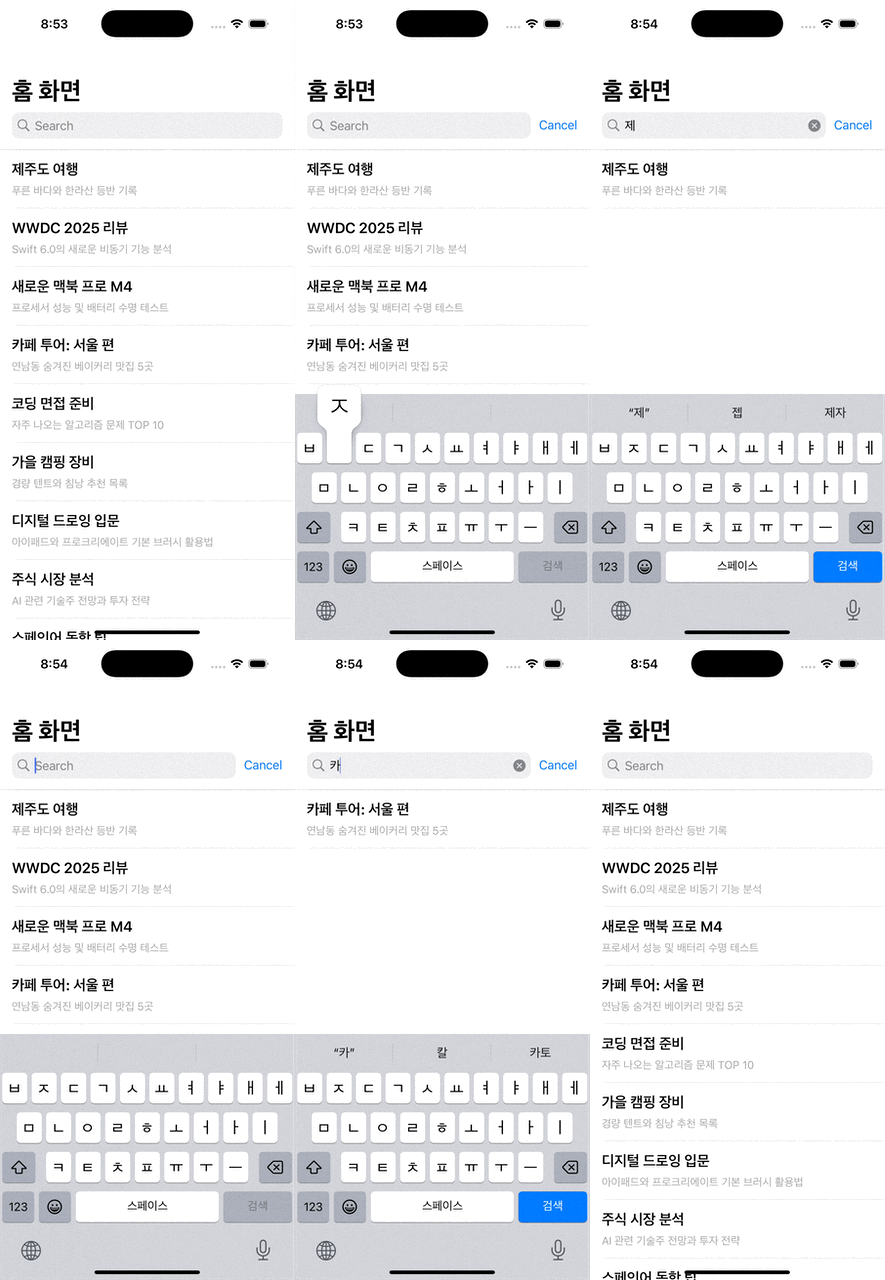
결과
This post is licensed under CC BY 4.0 by the author.