UIKIt - UITableView 다중 셀(Multiple Cell) 처리하기
UIKIt - UITableView 다중 셀(Multiple Cell) 처리하기
UITableView는 하나의 테이블 안에서 여러 종류의 Cell을 사용할 수 있음.
먼저 아래와 같이 설정 화면에서 사용할 2가지 Cell을 구성해줌.
SettingTableViewCell.swift
1
2
3
4
5
6
7
8
9
10
11
12
13
14
15
16
17
18
19
20
21
22
23
24
25
26
27
28
29
30
31
32
33
34
35
36
37
38
39
40
41
42
43
44
45
46
47
48
import UIKit

final class SettingTableViewCell: UITableViewCell {

    public static let identifier = "SettingElementCell"

    let iconText: IconTextDisplay = {
        let iconText = IconTextDisplay()

        iconText.iconImageContainer.backgroundColor = .tableCellBackground
        iconText.iconImageContainer.layer.cornerRadius = 10
        iconText.iconImageContainer.clipsToBounds = true

        iconText.textLabel.font = UIFont.boldSystemFont(ofSize: 19)

        return iconText
    }()

    override init(style: UITableViewCell.CellStyle, reuseIdentifier: String?) {
        super.init(style: style, reuseIdentifier: reuseIdentifier)

        setupUI()
    }

    required init?(coder: NSCoder) {
        fatalError("init(coder:) has not been implemented")
    }

    private func setupUI(){
        self.selectionStyle = .none
        self.contentView.addSubview(iconText)
        self.backgroundColor = .background

        iconText.snp.makeConstraints { make in
            make.edges.equalToSuperview().inset(10)
        }

        setupAccessoryView()
    }

    private func setupAccessoryView(){
        guard let image = UIImage(systemName: "greaterthan") else { return }
        let imageView = UIImageView(image: image)
        imageView.tintColor = .white
        accessoryView = imageView
    }

}
SettingTopStackCell.swift
1
2
3
4
5
6
7
8
9
10
11
12
13
14
15
16
17
18
19
20
21
22
23
24
25
26
27
28
29
30
31
32
33
34
35
36
37
38
39
40
41
42
43
44
45
46
47
48
49
50
51
52
53
54
55
56
57
58
59
60
61
62
63
64
65
66
67
68
69
70
71
72
73
74
75
76
77
78
79
80
81
82
83
84
85
86
87
88
89
90
91
92
93
94
95
96
97
98
99
100
101
102
103
104
105
106
107
108
109
110
111
112
113
114
115
116
117
import UIKit

final class SettingTopStackCell: UITableViewCell {

    public static let identifier = "SettingTopStackCell"

    private lazy var topStackView: UIStackView = {
        let stackView = UIStackView(arrangedSubviews: [nameLabel, emailLabel])

        stackView.axis = .vertical
        stackView.spacing = 5
        stackView.alignment = .fill
        stackView.distribution = .fillEqually

        return stackView
    }()

    let nameLabel: UILabel = {
        let label = UILabel()

        label.textColor = .white
        label.textAlignment = .center
        label.font = UIFont.boldSystemFont(ofSize: 24)
        label.text = "hello"

        return label
    }()

    let emailLabel: UILabel = {
        let label = UILabel()

        label.textColor = .descriptionText
        label.textAlignment = .center
        label.text = "test@gmail.com"

        return label
    }()

    private let totalBookLabelContainer: UIView = {
        let view = UIView()

        view.layer.cornerRadius = 8
        view.clipsToBounds = true
        view.backgroundColor = .tableCellBackground
        view.layer.borderColor = UIColor.border.cgColor
        view.layer.borderWidth = 2

        return view
    }()

    private lazy var totalBookStackView: UIStackView = {
        let stackView = UIStackView(arrangedSubviews: [totalBookLabel, totalBookLabelDescription])

        stackView.axis = .vertical
        stackView.spacing = 5
        stackView.alignment = .fill
        stackView.distribution = .fillEqually

        return stackView
    }()

    let totalBookLabel: UILabel = {
        let label = UILabel()

        label.text = "0"
        label.textAlignment = .center
        label.font = UIFont.boldSystemFont(ofSize: 30)
        label.textColor = .tintColor

        return label
    }()

    private let totalBookLabelDescription: UILabel = {
        let label = UILabel()

        label.text = "읽은 책"
        label.textColor = .descriptionText

        return label
    }()

    override init(style: UITableViewCell.CellStyle, reuseIdentifier: String?) {
        super.init(style: style, reuseIdentifier: reuseIdentifier)

        setupUI()
    }

    required init?(coder: NSCoder) {
        fatalError()
    }

    private func setupUI(){
        self.contentView.addSubview(topStackView)
        self.contentView.backgroundColor = .background

        topStackView.snp.makeConstraints { make in
            make.top.equalToSuperview()
            make.leading.trailing.equalToSuperview()
        }

        self.contentView.addSubview(totalBookLabelContainer)

        totalBookLabelContainer.addSubview(totalBookStackView)

        totalBookLabelContainer.snp.makeConstraints { make in
            make.top.equalTo(self.topStackView.snp.bottom).offset(20)
            make.leading.trailing.equalToSuperview()
            make.bottom.equalToSuperview().inset(20)
            make.height.equalTo(120)
        }

        totalBookStackView.snp.makeConstraints { make in
            make.centerX.equalToSuperview()
            make.centerY.equalToSuperview()
        }
    }
}
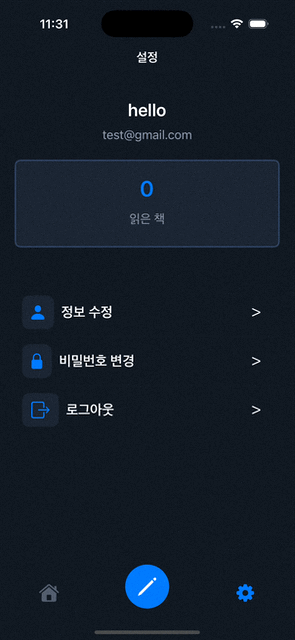
설정 화면에서는 프로필을 표시할 Cell과 메뉴를 표시할 Cell의 Section을 분리하여 처리할 생각임.
아래와 같이 Model을 정의해 Cell에 넘길 데이터를 담을 DTO와 Section을 편리하게 분리하기 위한 enum을 생성해줌.
enum을 사용하면Section마다 다른 타입의 데이터를 타입 안전하게 관리할 수 있음.
Setting.swift
1
2
3
4
5
6
7
8
9
10
11
12
13
14
15
16
17
18
19
20
import UIKit

// Section 분리용 enum
enum SettingSection{
    case topStack([SettingTopStackCellDto])
    case element([SettingCellDto])
}

// TopStackCell에 필요한 데이터
struct SettingTopStackCellDto{
    let nickname: String
    let email: String
    let count: Int
}

// SettingCell에 필요한 데이터
struct SettingCellDto{
    let text: String
    let image: UIImage?
}
그 후에는 아래와 같이 ViewController에서 필요한 데이터를 생성해줌.
SettingViewController.swift
1
2
3
4
5
6
7
8
9
10
11
12
13
14
15
16
17
18
19
20
21
22
23
24
25
26
27
28
29
30
31
32
33
34
35
36
37
38
39
40
41
42
43
44
45
46
47
48
import UIKit

final class SettingViewController: UIViewController {

    private let cellDataSource: [SettingSection] = {
      // 배열 생성
        var settingSectionList = [SettingSection]()

        // 표시할 계정 프로필 정보
        let topStackDto = SettingTopStackCellDto(nickname: "hello", email: "test@gmail.com", count: 0)

        // 하위 메뉴
        let modifyCellDto = SettingCellDto(
            text: "정보 수정",
            image: UIImage(systemName: "person.fill", withConfiguration: UIImage.SymbolConfiguration(pointSize: 22))
        )

        let changePasswordDto = SettingCellDto(
            text: "비밀번호 변경",
            image: UIImage(systemName: "lock.fill", withConfiguration: UIImage.SymbolConfiguration(pointSize: 22))
        )

        let logoutDto = SettingCellDto(
            text: "로그아웃",
            image: UIImage(systemName: "rectangle.portrait.and.arrow.right", withConfiguration: UIImage.SymbolConfiguration(pointSize: 22))
        )

        // enum 생성
        let topStack = SettingSection.topStack([topStackDto])
        let element = SettingSection.element([modifyCellDto, changePasswordDto, logoutDto])

        return [topStack, element]
    }()

    private lazy var tableView: UITableView = {
        let tableView = UITableView(frame: .zero, style: .insetGrouped)

        // 사용할 Cell 등록
        tableView.register(SettingTopStackCell.self, forCellReuseIdentifier: SettingTopStackCell.identifier)
        tableView.register(SettingTableViewCell.self, forCellReuseIdentifier: SettingTableViewCell.identifier)

        // delegate, datasource 설정
        tableView.delegate = self
        tableView.dataSource = self

        return tableView
    }()
}
마지막으로 TableView의 Datasource 메서드를 구현하여 Section, Cell을 구성해줌.
SettingViewController.swift
1
2
3
4
5
6
7
8
9
10
11
12
13
14
15
16
17
18
19
20
21
22
23
24
25
26
27
28
29
30
31
32
33
34
35
36
37
38
39
40
41
42
extension SettingViewController: UITableViewDelegate, UITableViewDataSource{

    // Section 수 반환
    func numberOfSections(in tableView: UITableView) -> Int {
        return cellDataSource.count
    }

    // Section에 표시될 Row 수 반환
    func tableView(_ tableView: UITableView, numberOfRowsInSection section: Int) -> Int {

        switch self.cellDataSource[section]{
        case .topStack(let topStackDto):
            return topStackDto.count
        case .element(let elementDto):
            return elementDto.count
        }
    }

    // Cell 구성
    func tableView(_ tableView: UITableView, cellForRowAt indexPath: IndexPath) -> UITableViewCell {
        switch self.cellDataSource[indexPath.section]{
        case .topStack(let topStackDtos):
            let cell = tableView.dequeueReusableCell(withIdentifier: SettingTopStackCell.identifier, for: indexPath) as! SettingTopStackCell
            let cellData = topStackDtos[indexPath.row]

            cell.emailLabel.text = cellData.email
            cell.nameLabel.text = cellData.nickname
            cell.totalBookLabel.text = "\(cellData.count)"

            return cell
        case .element(let elementDtos):

            let cell = tableView.dequeueReusableCell(withIdentifier: SettingTableViewCell.identifier, for: indexPath) as! SettingTableViewCell
            let cellData = elementDtos[indexPath.row]

            cell.iconText.textLabel.text = cellData.text
            cell.iconText.iconImage.image = cellData.image

            return cell
        }
    }
}
결과
Reference
This post is licensed under CC BY 4.0 by the author.