UIKit - UITextField 비밀번호 마스킹 토글 버튼 구현
UIKit - UITextField 비밀번호 마스킹 토글 버튼 구현
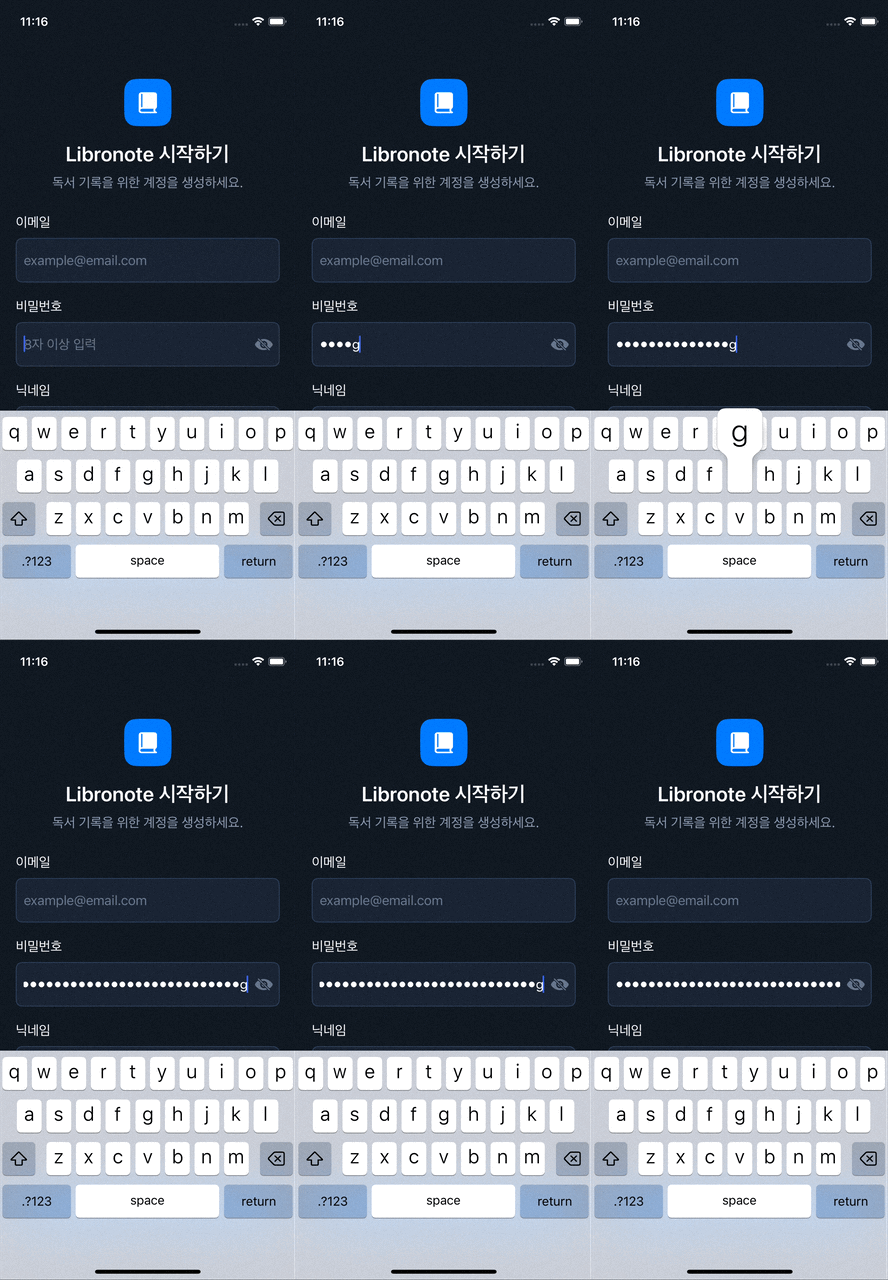
비밀번호 입력 TextField에 토근 버튼을 넣기 위해 아래와 같이 구현함.
UITexTield의 rightView 속성을 통해 처리하였음.
PasswordTextField.swift
1
2
3
4
5
6
7
8
9
10
11
12
13
14
15
16
17
18
19
20
21
22
23
24
25
26
27
28
29
30
31
32
33
34
35
36
37
38
39
40
41
42
43
44
45
46
47
48
49
50
51
52
53
54
55
import UIKit

final class PasswordTextField: UITextField {

    private var rightButton: UIButton!

    override init(frame: CGRect) {
        super.init(frame: frame)

        setupUI()
    }

    required init?(coder: NSCoder) {
        fatalError()
    }

    private func setupUI(){
        // 비밀번호 마스킹 처리
        isSecureTextEntry = true
        textContentType = .oneTimeCode

        // 왼쪽 패딩
        let leftPaddingView = UIView(frame: CGRect(x: 0, y: 0, width: 10, height: 0))

        // 오른쪽 패딩
        let rightPaddingView = UIView(frame: CGRect(x: 0, y: 0, width: bounds.height - 40, height: bounds.height - 30))

        // 토글 버튼 생성
        rightButton = UIButton(frame: CGRect(x: -5, y: 0, width: bounds.height - 30, height: bounds.height - 30))
        rightButton.contentMode = .scaleAspectFit
        rightButton.setImage(UIImage(systemName: "eye.slash.fill"), for: .normal)

        rightPaddingView.addSubview(rightButton)

        // UITextField rightView 설정
        rightView = rightPaddingView
        rightViewMode = .always

        // UITextField leftView 설정
        leftView = leftPaddingView
        leftViewMode = .always

        rightButton.tintColor = UIColor(named: "PlaceholderColor")
        rightButton.addTarget(self, action: #selector(updateStatus), for: .touchUpInside)
    }

    @objc private func updateStatus(){
        isSecureTextEntry.toggle()
        if isSecureTextEntry{
            rightButton.setImage(UIImage(systemName: "eye.slash.fill"), for: .normal)
        }else{
            rightButton.setImage(UIImage(systemName: "eye.fill"), for: .normal)
        }
    }
}
결과
Reference
This post is licensed under CC BY 4.0 by the author.