UIKit - NavigationController 설정 방법(코드)
UIKit - NavigationController 설정 방법(코드)
NavigationController 설정 방법(코드)
ViewController.swift
1
2
3
4
5
6
7
8
9
10
11
12
13
14
15
16
17
18
19
20
21
22
23
24
25
26
27
28
29
30
31
32
33
34
35
36
37
38
39
40
41
42
43
44
45
46
47
48
49
50
51
52
53
54
55
56
57
58
59
60
61
62
63
64
65
66
67
68
69
70
71
import UIKit

class ViewController: UIViewController {

    private lazy var nextBtn: UIButton = {
        let btn = UIButton()

        btn.setTitle("NavigationView On", for: .normal)
        btn.backgroundColor = .black
        btn.setTitleColor(.white, for: .normal)
        btn.titleLabel?.font = UIFont.systemFont(ofSize: 17, weight: .bold)

        btn.translatesAutoresizingMaskIntoConstraints = false

        btn.addTarget(self, action: #selector(nextBtnTapped), for: .touchUpInside)

        return btn
    }()

    // NavigationController 인스턴스 할당
    private lazy var navVc: UINavigationController = {
        let first = FirstViewController()

        // FirstViewController rootViewController로 지정
        let navVc = UINavigationController(rootViewController: first)
        return navVc
    }()

    override func viewDidLoad() {
        super.viewDidLoad()

        makeUI()

        // NavigationBar 디자인 설정
        let appearance = UINavigationBarAppearance()

        appearance.configureWithOpaqueBackground()
        appearance.backgroundColor = .white

        // 기본 상태에서 네비게이션 바가 표시될 때 적용되는 스타일.
        // 보통 화면 상단에서 스크롤하지 않은 상태일 때의 스타일.
        // 전역 설정
        UINavigationBar.appearance().standardAppearance = appearance

        // 스크롤 뷰를 최상단까지 올렸을 때 (큰 타이틀) 적용되는 스타일.
        // 전역 설정
        UINavigationBar.appearance().scrollEdgeAppearance = appearance

        // Compact 높이에서 (예: iPhone 가로 모드, CallKit 화면 등) 네비게이션 바 스타일.
        // 전역 설정
        UINavigationBar.appearance().compactAppearance = appearance
    }

    func makeUI(){
        self.view.addSubview(nextBtn)

        NSLayoutConstraint.activate([
            nextBtn.centerXAnchor.constraint(equalTo: self.view.centerXAnchor),
            nextBtn.centerYAnchor.constraint(equalTo: self.view.centerYAnchor),
            nextBtn.widthAnchor.constraint(equalToConstant: 200),
            nextBtn.heightAnchor.constraint(equalToConstant: 45)
        ])
    }

    @objc func nextBtnTapped(){
        navVc.modalPresentationStyle = .fullScreen

        // present 형태로 NavigationController를 띄움
        present(navVc, animated: true)
    }
}
FirstViewController.swift
1
2
3
4
5
6
7
8
9
10
11
12
13
14
15
16
17
18
19
20
21
22
23
24
25
26
27
28
29
30
31
32
33
34
35
36
37
38
39
40
41
42
43
44
45
46
47
48
49
50
51
import UIKit

class FirstViewController: UIViewController {

    private lazy var nextBtn: UIButton = {
        let btn = UIButton()

        btn.setTitle("다음으로", for: .normal)
        btn.backgroundColor = .black
        btn.setTitleColor(.white, for: .normal)
        btn.titleLabel?.font = UIFont.systemFont(ofSize: 17, weight: .bold)

        btn.translatesAutoresizingMaskIntoConstraints = false

        btn.addTarget(self, action: #selector(nextBtnTapped), for: .touchUpInside)

        return btn
    }()

    override func viewDidLoad() {
        super.viewDidLoad()

        // NavigationController 타이틀 설정
        self.title = "첫화면"

        // largeTitle 설정
        navigationController?.navigationBar.prefersLargeTitles = true
        navigationItem.largeTitleDisplayMode = .always

        self.view.backgroundColor = .red
        makeUI()
    }

    func makeUI(){
        self.view.addSubview(nextBtn)

        NSLayoutConstraint.activate([
            nextBtn.centerXAnchor.constraint(equalTo: self.view.centerXAnchor),
            nextBtn.centerYAnchor.constraint(equalTo: self.view.centerYAnchor),
            nextBtn.widthAnchor.constraint(equalToConstant: 120),
            nextBtn.heightAnchor.constraint(equalToConstant: 45)
        ])
    }

    @objc func nextBtnTapped(){
        let secondVc = SecondViewController()

        // 다음화면으로 push
        self.navigationController?.pushViewController(secondVc, animated: true)
    }
}
SecondViewController.swift
1
2
3
4
5
6
7
8
9
10
11
12
13
14
import UIKit

class SecondViewController: UIViewController {

    override func viewDidLoad() {
        super.viewDidLoad()

        self.view.backgroundColor = .green
        self.title = "두번째"

        // largetTitle 사용하지 않음
        navigationItem.largeTitleDisplayMode = .never
    }
}
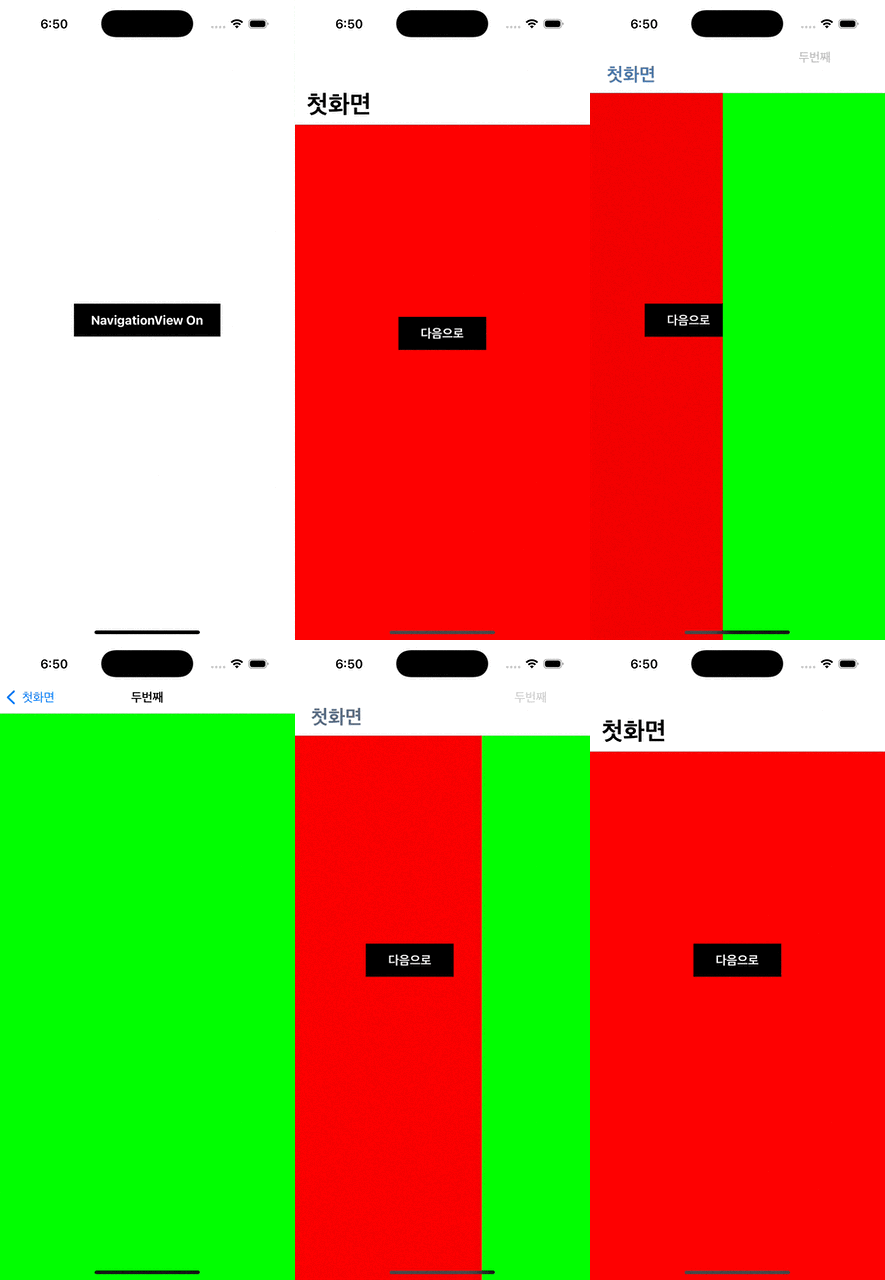
결과
This post is licensed under CC BY 4.0 by the author.